

WordPress Server Errors: 500, 502, 503, 504 & Connection Timeout — Complete Fix Guide
A technical reference for diagnosing the five most disruptive WordPress server errors — with root-cause analysis, step-by-step fixes, and the hosting configurations that prevent them.
Why WordPress Produces Server Errors — and What They Share
WordPress server errors are HTTP status codes returned by a web server when it cannot complete a request. Unlike client-side errors (400-range codes, which indicate a problem with the browser’s request), 5xx errors signal a failure on the server side — meaning the web server, PHP interpreter, database, or the network path between them could not process what WordPress asked them to do.
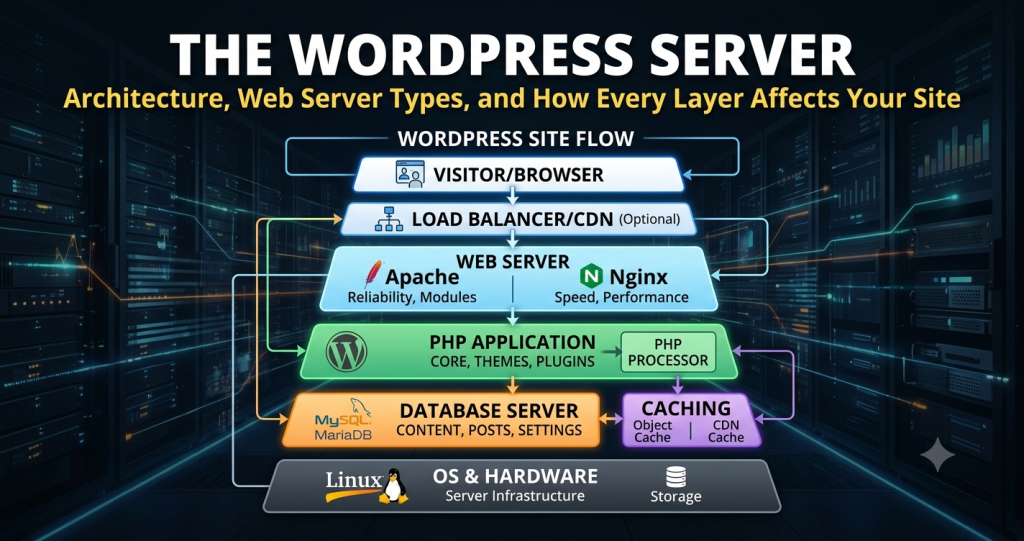
All five errors covered in this guide share the same underlying substrate: WordPress’s dynamic request lifecycle. When a visitor loads a page, the request flows through a chain — web server → PHP-FPM → MySQL/MariaDB — and any failure at any layer in that chain produces a server error. The specific error code tells you where in the chain the failure occurred. Understanding that chain is the foundation for every fix below. For a deep-dive on the full stack, see the WordPress Server Architecture guide and the database server reference.
The five errors below differ in where the chain breaks, who reports the failure (origin server vs. reverse proxy), and whether the failure is transient (resolvable by reloading) or permanent (requires active intervention). The table in Section 7 maps this clearly. First, the errors in detail.
500 Internal Server Error
Root Causes
A 500 error is deliberately vague by design — the HTTP spec defines it as a catch-all for conditions the server cannot categorise. In WordPress specifically, the most common underlying causes are:
.htaccess file is the single most common cause. A bad plugin write, incomplete update, or manual edit error can corrupt it, causing Apache to refuse all requests.functions.php, a theme update that introduced bad code, or a child theme conflict produces a PHP parse or fatal error on every page load.memory_limit set by your host allows. Common on shared hosting with a 64MB or 128MB cap.wp-config.php, or files owned by the wrong user) can cause the web server to refuse execution.Step-by-Step Fix
-
01Regenerate .htaccess. Log in via FTP/SFTP, rename
.htaccessto.htaccess_backup, then go to Settings → Permalinks in wp-admin and click Save. WordPress creates a fresh.htaccess. If the error disappears, the original file was corrupted. -
02Enable WP_DEBUG to expose the real error. Add
define('WP_DEBUG', true); define('WP_DEBUG_LOG', true);towp-config.php. Check/wp-content/debug.logfor the actual PHP fatal error message and file path. Disable debug mode immediately after diagnosing. -
03Deactivate all plugins. Rename
/wp-content/plugins/to/wp-content/plugins_disabled/via FTP. If the site loads, a plugin is the cause. Restore the folder and re-activate plugins one by one to isolate the offender. -
04Switch to a default theme. In the database or via WP-CLI, set the active theme to
twentytwentyfour. If the error clears, your theme’s PHP code is the culprit. -
05Increase PHP memory limit. Add
define('WP_MEMORY_LIMIT', '256M');towp-config.php. If your host does not honour this, contact support to raise the server-level PHPmemory_limitdirective. -
06Check and correct file permissions. WordPress files should be
644, directories755, andwp-config.phpshould be600. Usefind /path/to/wp -type f -exec chmod 644 {} \;andfind /path/to/wp -type d -exec chmod 755 {} \;.
# wp-config.php — add before "That's all, stop editing!"
define('WP_DEBUG', true);
define('WP_DEBUG_LOG', true);   // writes to /wp-content/debug.log
define('WP_DEBUG_DISPLAY', false); // hides errors from visitors
define('WP_MEMORY_LIMIT', '256M');
502 Bad Gateway
Root Causes
A 502 is a proxy-layer error. It appears when the front-facing server (often NGINX, a CDN, or a load balancer) is running fine but the backend it forwards requests to — typically PHP-FPM — crashes, times out, or returns garbage. The most common causes in WordPress environments:
-
→PHP-FPM worker pool exhaustion. All
pm.max_childrenworkers are occupied. New requests queue, then time out. The proxy reports this as a 502. Extremely common on shared hosting wheremax_childrenis set to 5–10 regardless of traffic. -
→PHP-FPM process crash. A PHP fatal error kills a worker process. If enough workers crash simultaneously, the pool becomes unable to serve requests and the proxy fails to upstream.
-
→Resource limits killing PHP processes. The hosting provider’s OOM (Out of Memory) killer terminates PHP-FPM processes when the server runs low on RAM. This is endemic on oversold shared hosting plans.
-
→Upstream socket errors. NGINX communicates with PHP-FPM over a Unix socket or TCP port. If that socket is unavailable (PHP-FPM stopped, permission denied, wrong path), NGINX returns a 502.
-
→CDN or Cloudflare upstream failure. If you use Cloudflare in proxy mode and your origin server returns an error or is unreachable, Cloudflare reports a 502 to the visitor rather than showing the origin’s error page.
Step-by-Step Fix
-
01Check PHP-FPM status. If you have server access:
sudo systemctl status php8.2-fpm. A stopped or failed service is the direct cause. Restart it and check the error log at/var/log/php8.2-fpm.log. -
02Review NGINX error logs.
/var/log/nginx/error.logwill show the upstream error — typicallyconnect() to unix:/run/php/php8.2-fpm.sock failedorupstream timed out. The message tells you whether PHP-FPM is dead or slow. -
03Temporarily disable plugins. A runaway plugin can cause PHP-FPM workers to hang on long-running operations. Rename the plugins directory and test if the 502 clears under load.
-
04Pause Cloudflare (if applicable). In the Cloudflare dashboard, use “Pause Cloudflare on Site” to connect directly to your origin. If the error disappears, it confirms Cloudflare was reporting an origin failure rather than a CDN failure.
-
05Escalate to your host. On shared and managed hosting plans, PHP-FPM configuration is not accessible. Contact support with the timestamp and frequency of the 502s. Request confirmation of PHP-FPM pool limits and whether resource throttling is active on your account.
503 Service Unavailable
Root Causes
503 errors have a narrower set of causes than 500s. They are characteristically traffic-driven — they appear when a site suddenly receives more requests than its hosting infrastructure can queue or process.
.maintenance file from an interrupted WordPress update intentionally serves 503 to all visitors. This is WordPress’s designed behaviour during upgrades.wp-login.php, a scraper running at high concurrency, or a DDoS attempt can exhaust server connections and trigger 503 responses for legitimate visitors.Step-by-Step Fix
-
01Check for a stuck .maintenance file. Connect via FTP/SFTP and look for a
.maintenancefile in the WordPress root. If a core or plugin update failed or was interrupted, delete this file. The 503 will clear immediately. -
02Disable all plugins and switch to a default theme. Some security and caching plugins explicitly send 503 responses under certain conditions (e.g., Wordfence rate-limiting, maintenance mode plugins). Deactivating plugins identifies this quickly.
-
03Limit the WordPress Heartbeat API. WordPress’s Heartbeat API fires AJAX requests to
wp-admin/admin-ajax.phpevery 15–60 seconds per logged-in user. On a busy site with many editors, this generates significant background load. Use the Heartbeat Control plugin to reduce frequency or disable it entirely on the front end. -
04Enable full-page caching immediately. A WordPress site under a traffic spike that has full-page caching enabled will serve cached HTML at web server speed, bypassing PHP and the database entirely. Without caching, every concurrent visitor triggers the full PHP → database cycle and the server collapses. Install LiteSpeed Cache, WP Rocket, or W3 Total Cache and enable page caching before your next high-traffic event.
-
05Block abusive bots and IPs. If server logs show a single IP or user-agent pattern generating thousands of requests per minute, use Cloudflare’s firewall rules (free tier) or your host’s IP block tool to reject that traffic at the edge before it reaches PHP.
# WP-CLI: delete .maintenance file
wp eval '@unlink(ABSPATH . ".maintenance");'

# Or via Bash if you have SSH access
rm /var/www/html/.maintenance
Retry-After header signals to Googlebot that the outage is temporary. Googlebot respects this and will retry rather than immediately down-ranking the URL. If your host or caching layer can return a proper 503 with this header during maintenance, your search rankings are protected.
504 Gateway Timeout
Root Causes
504 errors almost always indicate that PHP or the database took too long to respond to a request. The proxy (NGINX, Cloudflare, a load balancer) has a configured timeout value — typically 30–60 seconds — and if the upstream server has not responded by that deadline, it gives up and returns 504 to the visitor.
-
→Slow or hung PHP execution. A plugin, theme function, or WP-Cron task that makes an external HTTP request to a slow API will hold a PHP-FPM worker open until the request completes or times out. If enough workers are held in this state, new requests cannot be processed.
-
→Database query timeouts. Unoptimised database queries — particularly those caused by plugins with inefficient meta queries, missing indexes, or table scans on large
wp_postmetatables — can hold a database connection for many seconds, blocking PHP from completing its response. See the database server guide for query optimisation detail. -
→PHP max_execution_time exceeded. PHP’s
max_execution_timedirective (typically 30–60 seconds on shared hosting) kills a PHP process that has run for too long. The proxy receives a broken connection and reports 504. -
→WooCommerce or WP-Cron overload. WP-Cron processes triggered during page loads (wp_cron is not a real cron — it fires on visits) can execute long-running tasks synchronously, blocking the response. On WooCommerce sites, order processing and stock sync tasks are frequent culprits.
Step-by-Step Fix
-
01Increase PHP max_execution_time. In
php.inior viawp-config.php:set_time_limit(300);. For imports, large exports, or backup operations, a higher limit prevents premature timeout. On shared hosting, request this change from your host ifphp.iniis not accessible. -
02Profile slow database queries. Enable the WordPress Query Monitor plugin in staging and load the pages returning 504s. Identify queries taking over 100ms. Plugin-generated queries against
wp_postmetaorwp_optionswith missing indexes are the most frequent offenders. Consider replacing or configuring the offending plugin. -
03Disable WP-Cron and set a real cron job. Add
define('DISABLE_WP_CRON', true);towp-config.phpand configure a server-level cron to callwp-cron.phpevery 5 minutes. This decouples scheduled task execution from page loads entirely. -
04Identify external HTTP calls. Use Query Monitor or the HTTP API logger plugin to identify plugin-initiated external HTTP requests on page load. An unavailable third-party API (payment gateway, newsletter service, analytics endpoint) can hang a PHP worker for 30+ seconds waiting for a response that never comes.
-
05Increase NGINX proxy timeout values. If you manage your own server: in the NGINX config, increase
fastcgi_read_timeoutandproxy_read_timeoutto accommodate legitimate long-running processes (bulk imports, etc.) without changing the threshold for normal page requests.
# wp-config.php
define('DISABLE_WP_CRON', true);

# Server crontab (every 5 minutes)
*/5 * * * * wget -q -O - https://yourdomain.com/wp-cron.php?doing_wp_cron >/dev/null 2>&1

# NGINX — increase upstream timeout for slow PHP
fastcgi_read_timeout 300;
proxy_read_timeout 300;
WordPress Connection Timed Out
Root Causes
A connection timeout means the browser sent a TCP SYN packet to your server’s IP and received no response within the browser’s connection timeout window (typically 30–90 seconds). The full server stack — including the web server process — is either not running, not reachable, or actively refusing connections. Causes include:
Step-by-Step Fix
-
01Confirm it’s not local. Test from a different device on a different internet connection (use your phone’s mobile data, or a tool like downforeveryoneorjustme.com). A connection timeout that only affects you is almost certainly a local DNS, firewall, or ISP issue — not a WordPress problem.
-
02Check DNS propagation. Use a tool like
dig yourdomain.com Aor whatsmydns.net to verify your domain resolves to the correct IP globally. If you recently migrated hosts or changed nameservers, DNS propagation (up to 48 hours) may be the cause. -
03Verify web server status via SSH. If you have SSH access:
sudo systemctl status nginxorsudo systemctl status apache2. A stopped process needs to be restarted. Check/var/log/nginx/error.logor/var/log/apache2/error.logfor the crash reason before restarting. -
04Check your host’s control panel for suspension notices. cPanel, Plesk, and most managed hosting dashboards surface account suspension warnings. Log in and look for any alerts about resource over-use, security violations, or billing issues.
-
05Increase PHP memory limit. If the connection timeout is WordPress-specific (other sites on the same host work), add
define('WP_MEMORY_LIMIT', '256M');towp-config.phpand contact your host to raise the server-level memory limit. See the database server guide for memory configuration in the context of MySQL. -
06Deactivate all plugins via FTP. A runaway plugin that continuously crashes PHP can exhaust server resources until the web server process dies. Rename the
/wp-content/plugins/directory via FTP to prevent any plugins from loading, then restart the web server.
Error Comparison: Cause, SEO Impact, Urgency
| Error | Who Reports It | Root Location | SEO Impact | Typical Fix Time |
|---|---|---|---|---|
| 500 | Origin web server | PHP fatal error, .htaccess, memory | High — down-ranks after 24–48h | Minutes–hours |
| 502 | Reverse proxy / CDN | PHP-FPM down or overloaded | Medium — sustained causes ranking drop | Minutes (restart) – weeks (infra upgrade) |
| 503 | Web server / load balancer | Traffic spike, maintenance mode, bots | Low if temporary + Retry-After header | Minutes (maintenance) – hours (traffic) |
| 504 | Reverse proxy / CDN | Slow PHP, slow DB, external API timeout | Medium — intermittent less damaging | Hours–days (requires profiling) |
| Timeout | Browser (no response) | Server down, DNS, firewall, suspension | Severe — full site unreachable | Minutes (if known) – contact host |
Hosting Environments That Prevent These Errors
Most WordPress server errors are not WordPress problems. They are the symptom of a hosting environment that lacks sufficient resources, proper PHP-FPM configuration, full-page caching, or monitoring. Choosing the right hosting architecture is the most effective long-term fix for all five error types covered in this guide. The following hosting characteristics directly reduce the frequency and severity of each error class:
innodb_buffer_pool, persistent connections, and query caching prevents the slow database queries that cause 504 timeouts. See the database server guide.Frequently Asked Questions
Retry-After header causes minimal SEO damage — Googlebot logs the error and retries. Sustained 503s (several hours or recurring daily) do harm rankings because Googlebot reduces crawl frequency and may begin to drop URLs it consistently cannot reach. The most important thing is restoring availability quickly and ensuring your caching infrastructure prevents 503s from occurring during predictable traffic events.functions.php, a template file, or a theme function called on the frontend will crash PHP for those requests only. Switch to a default theme via the database or WP-CLI to confirm, then debug the theme’s PHP code.WP_MEMORY_LIMIT defines how much RAM PHP is permitted to allocate for a single WordPress request. When a request exceeds this limit (typically because a plugin loads a large dataset, processes a large file, or runs a memory-intensive operation), PHP throws a fatal error and the request fails. Depending on your server configuration, this manifests as a 500 error, a white screen, or the “The site is experiencing technical difficulties” message. The default limit WordPress sets is 40MB, which is insufficient for many modern plugin combinations. Set it to at least 256MB in wp-config.php and confirm your host honours it.