

WordPress 500 Internal Server Error: Every Cause, Every Fix
The 500 error is WordPress’s least informative and most searched server error. This guide explains exactly what it is, every root cause ordered by likelihood, a definitive step-by-step diagnostic workflow, and the hosting configurations that prevent it recurring.
- What the WordPress 500 error actually means
- Every root cause — ordered by likelihood
- Symptom patterns that narrow the cause
- Step-by-step diagnostic workflow
- Detailed fixes for each cause
- How hosting environment determines 500 error frequency
- Preventing 500 errors long-term
- SEO impact and recovery
- Frequently asked questions
What the WordPress 500 Error Actually Means
The HTTP 500 status code — “Internal Server Error” — is defined by the HTTP/1.1 specification as a catch-all for conditions where the server encounters an unexpected condition that prevents it from fulfilling the request. The key word is unexpected: a 500 is not a planned response. It means something failed in a way the server did not know how to handle gracefully, so it returned the most generic error code available.
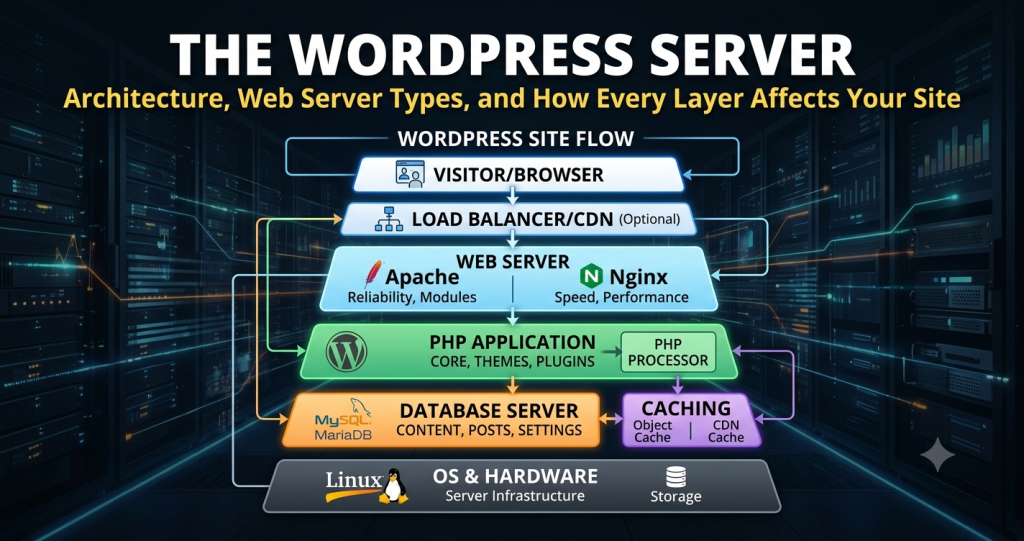
In a WordPress context, “the server” is not a monolithic thing — it is a chain of components: the web server process (Apache, NGINX, or LiteSpeed), the PHP interpreter (typically PHP-FPM), and the database server (MySQL or MariaDB). A 500 error means that something inside that chain crashed, was misconfigured, or ran out of resources before it could produce a valid response. The HTTP layer at the front does not know what went wrong internally — it only knows that a valid response was not produced — so it returns 500 and nothing more.
This is why 500 is both the most searched WordPress error and the most frustrating to diagnose: the error message visible to the user contains almost no useful information. The actual cause is buried in server-side logs that most shared hosting customers cannot easily access. The fix is always correct, but finding it requires systematically eliminating possibilities — which is exactly what this guide equips you to do.
What the Visitor Sees vs. What Is Actually Happening
Visitors see a generic error page — either the browser’s default “500 Internal Server Error” layout, or a custom error page your theme or host has configured. Some hosts return a blank white screen (the infamous “White Screen of Death,” or WSOD), which is a 500 response with an empty body. What is actually happening behind that page varies entirely based on the cause — which is why the diagnostic process matters more than any single fix.
Every Root Cause — Ordered by Likelihood
Nine distinct root causes produce WordPress 500 errors. They are ordered here by how frequently they appear in practice — starting with the most common culprit on a typical WordPress installation.
.htaccess file on every request. A syntax error — from a failed plugin write, interrupted update, or manual edit mistake — causes Apache to reject all requests with 500. The single most common cause on Apache-based shared hosting.functions.php, a bad theme update, or incompatible child-theme code crashes PHP on page load. Often manifests only on the front end (wp-admin still works), because the theme is only loaded for non-admin requests.Symptom Patterns That Narrow the Cause
Before running through a lengthy diagnostic process, certain symptom patterns immediately narrow the likely cause. Use these to shortcut to the right section of the fix guide below.
| Symptom | Most Likely Cause | Priority Fix |
|---|---|---|
| 500 on all pages including wp-admin | .htaccess corruption or core update failure | Regenerate .htaccess first |
| 500 on frontend only, wp-admin works | Active theme PHP error | Switch theme via DB |
| 500 started immediately after plugin update | Plugin PHP fatal error or conflict | Deactivate via FTP |
| 500 started immediately after WordPress update | Incomplete core update or PHP mismatch | Re-run update or rollback |
| 500 on specific admin pages only | Plugin conflict in admin context | Deactivate plugins individually |
| 500 under load / intermittently | PHP memory exhaustion | Increase memory limit |
| 500 after migrating to new host | File permissions or PHP version mismatch | Check permissions + PHP ver |
| White screen (no error text) | PHP fatal error; display_errors off | Enable WP_DEBUG immediately |
Step-by-Step Diagnostic Workflow
The fastest way to fix a WordPress 500 error is to follow a structured diagnostic sequence that eliminates causes systematically — rather than trying random fixes. The flow below is ordered from the most common cause to the least, and from the least invasive action to the most.
Detailed Fixes for Each Cause
Fix 1 — Regenerate the .htaccess File
The .htaccess file controls how Apache handles incoming requests for your WordPress site. WordPress writes to it automatically when you save permalink settings, and plugins — particularly security and caching plugins — add their own rewrite rules to it. A syntax error in any of these additions causes Apache to reject all incoming requests before WordPress even loads.
-
01Connect to your site via FTP or SFTP. The
.htaccessfile is in the WordPress root directory (the same folder aswp-config.php). If you don’t see it, enable hidden file display in your FTP client — it starts with a dot and is hidden by default. -
02Download a copy of the current
.htaccessfor backup, then rename the original to.htaccess_backup. Do not delete it — you may need to recover the rewrite rules your caching or security plugin added. -
03Reload the site. If it loads (possibly with broken URLs or a redirect loop), the
.htaccesswas the cause. Log in to wp-admin and go to Settings → Permalinks. Click Save Changes without changing anything. WordPress recreates a clean.htaccessautomatically. -
04If permalink settings don’t restore full functionality, compare the backup
.htaccess_backupwith the newly generated file and carefully re-add any custom rules your plugins require, one block at a time, testing after each addition to identify the bad rule.
# Correct minimal WordPress .htaccess (plain permalink structure) # BEGIN WordPressRewriteEngine On RewriteBase / RewriteRule ^index\.php$ - [L] RewriteCond %{REQUEST_FILENAME} !-f RewriteCond %{REQUEST_FILENAME} !-d RewriteRule . /index.php [L] # END WordPress
Fix 2 — Enable WP_DEBUG to Expose the Real Error
WordPress suppresses PHP error output to visitors by default — a sensible security decision, but one that makes debugging nearly impossible without enabling debug mode. The WP_DEBUG constant in wp-config.php controls this. The safest approach is to log errors to a file rather than displaying them on screen, so visitors still see the error page while you have access to the actual PHP error message.
# Add to wp-config.php BEFORE the "That's all, stop editing" comment

define('WP_DEBUG', true);
define('WP_DEBUG_LOG', true);     // writes errors to /wp-content/debug.log
define('WP_DEBUG_DISPLAY', false); // hides errors from visitors
@ini_set('display_errors', 0);   // belt-and-suspenders: suppress PHP display
After saving, trigger the 500 error again (reload the page that shows the error), then check /wp-content/debug.log via FTP. The log entry will contain the PHP error type, the file path, and the line number where the failure occurred. This single piece of information tells you exactly which plugin, theme, or core file is responsible.
WP_DEBUG_DISPLAY true exposes raw PHP errors — including file paths and server configuration details — to every visitor. Always use WP_DEBUG_DISPLAY false on a live site, and disable debug mode entirely once you have identified the cause.
Fix 3 — Deactivate All Plugins
If the debug log names a plugin file as the source of the fatal error, deactivate that specific plugin. If you cannot access wp-admin (the 500 blocks it entirely), use the FTP method: rename the entire /wp-content/plugins/ directory to /wp-content/plugins_disabled/. WordPress will fail to find any plugins and will boot without them. Once the site loads, rename the directory back and reactivate plugins one by one — testing after each activation — until the 500 returns. The last plugin you activated is the culprit.
# WP-CLI: deactivate all plugins at once (requires SSH access)
wp plugin deactivate --all

# Then reactivate one at a time
wp plugin activate akismet
wp plugin activate woocommerce
# ... continue until the error returns
Fix 4 — Increase the PHP Memory Limit
PHP’s memory_limit directive caps how much RAM a single PHP process can use. WordPress requests — particularly on plugin-heavy sites, during import operations, or when generating pages that query large datasets — can exceed this limit. When they do, PHP throws a Fatal error: Allowed memory size of X bytes exhausted error, which surfaces as a 500.
-
01Check your current limit by adding
to a temporary PHP file in your root and loading it. Look formemory_limitin the output. Delete the file immediately after. Alternatively, the debug log will show the exact byte count in the exhaustion error. -
02Add
define('WP_MEMORY_LIMIT', '256M');towp-config.php. This tells WordPress to request 256MB from PHP. WordPress will honour this up to the PHP-level ceiling set by your host. -
03If the error persists, the host-level
memory_limitinphp.iniis below 256MB and overriding your wp-config setting. Try addingphp_value memory_limit 256Mto.htaccess(Apache only). If that is also ignored, contact your host and request a memory limit increase. On shared plans, this is often only available by upgrading your plan.
# wp-config.php
define('WP_MEMORY_LIMIT', '256M');
define('WP_MAX_MEMORY_LIMIT', '512M'); // for admin-side operations

# .htaccess (Apache — try if wp-config method fails)
php_value memory_limit 256M

# php.ini (if you have access on VPS or dedicated)
memory_limit = 256M
Fix 5 — Switch to a Default Theme
If the 500 only affects the front end and wp-admin remains accessible, the active theme’s PHP code is almost certainly the cause. The cleanest diagnostic: switch to a default WordPress theme (Twenty Twenty-Four or Twenty Twenty-Five) and confirm the error clears. If wp-admin is inaccessible, switch via the database or WP-CLI.
# WP-CLI: switch to a default theme (SSH required)
wp theme activate twentytwentyfour

# Direct database update (use phpMyAdmin or mysql CLI)
UPDATE wp_options SET option_value = 'twentytwentyfour'
  WHERE option_name IN ('template', 'stylesheet');
Once confirmed, the fix options are: update the theme to its latest version (if the error appeared after an auto-update that introduced a bug), roll back to a previous version, or contact the theme developer with the debug log error. If the issue is in a child theme’s functions.php, disable the child theme temporarily and fix the PHP syntax error in the file directly.
Fix 6 — Correct File Permissions
WordPress files require specific permission settings for the web server to read and execute them. Permissions that are too restrictive (e.g. 400 on PHP files) prevent the web server from reading them. Permissions that are too permissive (777) can trigger security restrictions on some hosting platforms that intentionally refuse to execute world-writable PHP files.
| Path | Correct Permission | Notes |
|---|---|---|
| /wp-content/ | 755 | Directory — owner full, group/world read+execute |
| All .php files | 644 | Owner read+write, everyone else read only |
| wp-config.php | 600 or 640 | Restrict to owner only — heightened security |
| All directories | 755 | Never 777 on production |
| .htaccess | 644 | Readable by web server, writable by owner |
# Fix all file and directory permissions via SSH (run from WP root)
find . -type f -exec chmod 644 {} \;
find . -type d -exec chmod 755 {} \;
chmod 600 wp-config.php
Fix 7 — Address PHP Version Mismatches
WordPress core itself has supported PHP 8.x since version 5.9, but plugins and themes lag significantly. Running PHP 8.2 or 8.3 with plugins that use deprecated functions (most commonly create_function(), each(), and certain regex patterns) will produce fatal errors. Conversely, running a very old PHP version (7.4 or earlier) with modern plugins that use newer language features (enums, named arguments, fibers) will also fail.
-
01Check the PHP version your hosting account is currently running via your control panel (cPanel → Software → PHP Version Selector, or equivalent). Note both the version number and the PHP-FPM vs. CGI mode.
-
02Check the PHP requirements for your active plugins and theme on their respective WordPress.org or developer pages. The “Requires PHP” metadata field in the plugin’s readme specifies the minimum version.
-
03If a recent host-side PHP upgrade caused the 500, temporarily roll back to the previous version in your control panel, verify the site works, then update offending plugins before upgrading PHP again.
How Hosting Environment Determines 500 Error Frequency
The same WordPress installation — identical codebase, identical plugins — will produce 500 errors far more frequently on a constrained shared hosting plan than on a properly configured managed WordPress host or VPS. This is not incidental. Three specific hosting characteristics drive the difference:
PHP Memory Limits on Shared Hosting
Shared hosting providers set PHP memory limits to constrain how much of the shared server’s RAM any single account can consume. Limits of 64MB or 128MB are common. A typical WordPress installation with a page builder, WooCommerce, and a caching plugin can require 150–250MB of PHP memory for complex admin operations (bulk imports, report generation, plugin updates). On a 64MB plan, these operations will consistently trigger memory exhaustion — and 500 errors.
On dedicated VPS or managed WordPress hosting, the PHP memory limit is set per-server and can be configured to 256MB, 512MB, or higher. The WordPress server has the resources the stack actually needs rather than an artificially constrained budget shared with dozens of other sites.
php.ini memory_limit even with wp-config.php or .htaccess directives. The host’s configuration takes precedence. If your site consistently hits memory exhaustion on a shared plan, the only real fix is to upgrade to a plan that provides a higher limit — or to migrate to a host that sets it appropriately by default.
PHP Version Management
Hosts that automatically upgrade the server’s default PHP version without notifying customers — or that switch accounts without testing compatibility — consistently produce 500 errors for customers whose plugins are not yet compatible with the new version. Managed WordPress hosts that handle PHP upgrades carefully (testing in staging, staging-to-production promotion, and plugin compatibility checks) eliminate this class of error. If you manage your own VPS via the server architecture documented in our stack guide, PHP version management is entirely under your control.
Update Handling and Atomic Deployments
A WordPress core update that is interrupted — by a network timeout, a server-side resource limit, or a concurrent request during the update window — leaves files in a partially-written state that produces a 500 on every subsequent request. Managed WordPress hosts that perform updates via atomic deployment (staging the new version completely before switching the live site to it) eliminate this failure mode. On standard hosting plans where WordPress auto-updates happen in-place, interrupted updates are a recurring cause of 500 errors that most site owners attribute to WordPress rather than to the hosting process.
Preventing 500 Errors Long-Term
Fixing a 500 error reactively is necessary but insufficient. The following practices prevent the most common causes from recurring:
-
01Use a staging environment for all updates. The majority of plugin-caused 500 errors occur immediately after an update. Running updates on a staging site first — and testing functionality before pushing to production — eliminates this. Most managed WordPress hosts include one-click staging. On shared hosting, a sub-domain with a WordPress install serves the same purpose.
-
02Set a reliable backup schedule. When a 500 error cannot be quickly diagnosed, a clean backup from before the error began is the fastest path to restoring the site. Daily automated backups stored off-server mean the worst case is losing one day of content — not rebuilding the site from scratch. Most managed hosts include daily backups; on shared hosting, configure UpdraftPlus or similar.
-
03Maintain WP_DEBUG_LOG enabled in staging, disabled in production. Having a pre-existing debug log in staging means that when a 500 appears after an update, the PHP error is already captured. You do not need to recreate the error — you can read the log, roll back the update, and fix at leisure.
-
04Audit and minimise the plugin stack. Each additional active plugin adds PHP code that runs on every request and increases the surface area for fatal errors, conflicts, and memory exhaustion. A plugin audit every 3–6 months — removing plugins that duplicate functionality or are no longer maintained — reduces 500 error frequency in proportion to how far the plugin count is reduced.
-
05Set up uptime monitoring. A 500 error that goes unnoticed for 24+ hours causes meaningful SEO damage. A free uptime monitor (UptimeRobot, Better Uptime, or the monitoring provided by most managed hosts) alerts you within 1–5 minutes of a site going down. Track uptime performance for your hosts at the WP Host Finder uptime tracker.
-
06Ensure your PHP memory limit has headroom. The right memory limit is not the minimum that prevents errors — it is the minimum plus a comfortable buffer for peak operations. If your site normally uses 90MB of memory and your limit is 128MB, a large import or complex page generation during a traffic spike will exhaust the limit. Set the limit to at least double your typical peak usage.
SEO Impact and Recovery
WordPress 500 errors have direct consequences for search rankings, and understanding the timeline is important for prioritising the fix.
How Googlebot Handles 500 Errors
When Googlebot encounters a 500 error on a URL it is trying to crawl, it logs the error and schedules a retry. A single 500 encounter on a URL that is otherwise healthy does not cause immediate ranking loss. However, the behaviour changes rapidly as the error persists:
| Duration of 500 Error | Googlebot Behaviour | Ranking Impact |
|---|---|---|
| Under 6 hours | Logs error, retries on next crawl cycle | Minimal — transient errors are expected |
| 6–24 hours | Increases retry frequency, logs sustained error | Low — Google gives sites a grace period |
| 24–48 hours | Begins reducing crawl budget for affected URLs | Moderate — rankings begin to soften |
| 48+ hours | May begin removing URLs from index | High — recovery takes weeks, not hours |
| 7+ days | URLs treated as removed; crawl budget reassigned | Severe — full recovery can take months |
Monitoring for 500 Errors in Google Search Console
Google Search Console’s Page Indexing report (under Indexing → Pages) surfaces URLs that returned server errors during Googlebot’s crawl attempts. A sudden spike in “Server error (5xx)” entries is the clearest signal that a 500 event affected crawlability. The Coverage report in GSC also distinguishes between “Crawled — currently not indexed” (temporary error, will resolve) and “Excluded” (persistent error, requires intervention).
Checking Server Logs for 500 Frequency
If you have access to server logs (via SSH, cPanel’s error log viewer, or your host’s dashboard), reviewing the Apache or NGINX error log for 500 occurrences tells you exactly how long the error lasted and which URLs were affected. This is more reliable than GSC for establishing the timeline, because GSC only reports URLs Googlebot happened to request during the outage — not the full scope of impact.
# Count 500 errors in Apache access log for today
grep " 500 " /var/log/apache2/access.log | grep $(date +%d/%b/%Y) | wc -l

# View most recent 500 error entries in NGINX error log
tail -n 100 /var/log/nginx/error.log | grep "500\|upstream"
Frequently Asked Questions
/wp-content/debug.log — it will name the exact file. If log access is also unavailable, use the FTP method of renaming the entire plugins directory, confirming the site loads, then reactivating plugins one by one. A site with 20 plugins can usually be isolated to the culprit plugin within 10–15 minutes using this binary-search approach: activate half the plugins, test; if error appears, the culprit is in that half; activate half of that half, test; repeat until isolated.